The Definitive Guide to Setting Up MetaMask for the KCC Network
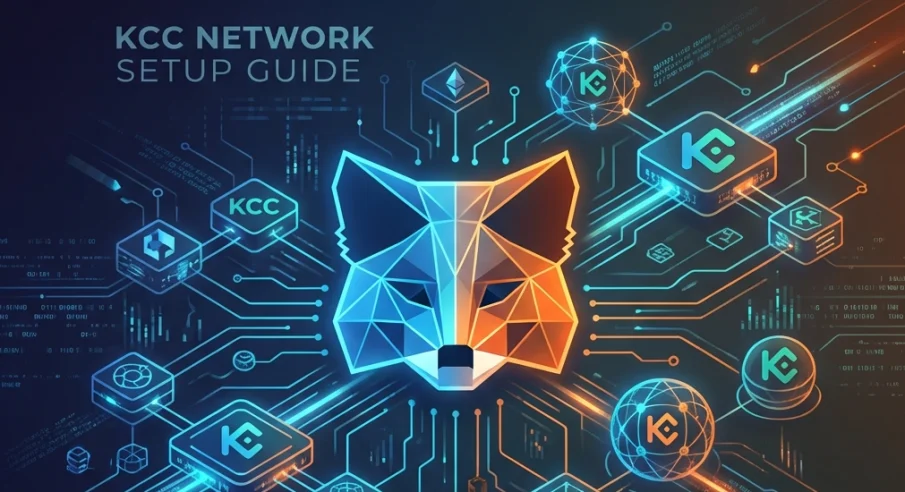
If you are looking to explore the KuCoin Community Chain (KCC) ecosystem, you will need to configure your MetaMask wallet to connect to this EVM-compatible blockchain. The KCC network offers blazing-fast transactions and minimal gas fees, making it an attractive destination for DeFi enthusiasts and yield farmers alike. In this comprehensive guide, we will walk you through the entire process of adding KCC to MetaMask so you can start interacting with decentralized applications on the network.
What is KCC and Why Should You Use It?
KuCoin Community Chain, commonly known as KCC, is a decentralized public blockchain that was built by KCS and KuCoin community members. It is fully compatible with the Ethereum Virtual Machine (EVM), which means developers can easily port Ethereum-based smart contracts and dApps to KCC without significant modifications.
One of the biggest advantages of using KCC is its cost efficiency. Unlike Ethereum, where gas fees can sometimes spike to uncomfortable levels during periods of high network congestion, KCC maintains consistently low transaction costs. The network uses KCS as its native gas token, which allows users who already hold KuCoin Shares to put their tokens to work beyond centralized exchange trading.
Prerequisites Before You Start
Before you begin the setup process, make sure you have the following:
First, ensure that you have MetaMask installed as a browser extension on Chrome, Firefox, Brave, or Edge. You can download it directly from the official MetaMask website if you have not already done so.
Second, you will need some KCS tokens in your wallet to pay for gas fees when you start making transactions on the KCC network. You can purchase KCS on KuCoin and withdraw it to your MetaMask address once the network is configured.
Step-by-Step Configuration Guide
Accessing the Network Settings
Open your MetaMask wallet by clicking on the extension icon in your browser toolbar. You will see the main wallet interface with your current network displayed at the top. By default, this is usually set to "Ethereum Mainnet" if you have never added any custom networks before.
Click on the network dropdown menu at the top of the wallet. This will expand to show you a list of available networks along with an option to add a new network.
Adding the KCC Mainnet
Select "Add Network" or "Custom RPC" from the dropdown menu. This will open a new tab or form where you can enter the details for the KCC network.
Now enter the following network details exactly as shown:
Network Name: KCC-MAINNET
New RPC URL: https://rpc-mainnet.kcc.network
Chain ID: 321
Currency Symbol: KCS
Block Explorer URL: https://explorer.kcc.io/en
After entering all the information, double-check each field to ensure accuracy. A single typo could result in connection failures or, worse, send your funds to the wrong network.
Saving and Switching Networks
Click the "Save" button to add the KCC network to your MetaMask wallet. Once saved, MetaMask will automatically switch to the newly added network. You should now see "KCC-MAINNET" displayed at the top of your wallet interface along with your KCS balance (which will show as zero if you have not received any tokens yet).
Verifying Your Connection
To confirm that everything is working correctly, you can visit the KCC Block Explorer at explorer.kcc.io and compare the latest block numbers with what your wallet reports. If the numbers match closely, you are successfully connected to the network.
You can also try connecting to a decentralized application on KCC, such as KuSwap or MojitoSwap, to verify that your wallet is properly configured. When you visit these platforms and click "Connect Wallet," MetaMask should prompt you to confirm the connection request.
Troubleshooting Common Issues
If you encounter connection problems, there are a few things you can try. First, make sure your internet connection is stable. Blockchain networks require consistent connectivity to function properly.
Second, verify that you entered the RPC URL correctly. The official endpoint is https://rpc-mainnet.kcc.network and using any other URL may result in failed connections.
Third, try clearing your browser cache and restarting MetaMask. Sometimes cached data can interfere with network switching.
Fourth, if transactions are failing, ensure that you have sufficient KCS in your wallet to cover gas fees. Even a small amount like 0.1 KCS should be enough for several transactions given the low fee structure on KCC.
What Comes Next?
Now that you have MetaMask configured for the KCC network, you are ready to explore everything this ecosystem has to offer. Consider bridging some tokens from Ethereum or Binance Smart Chain using the official KCC Bridge, or dive straight into yield farming on platforms like KuSwap and MojitoSwap.
The KCC ecosystem continues to grow with new protocols launching regularly. With your wallet properly set up, you are positioned to take advantage of all the opportunities that this high-performance blockchain provides.